Crew and team logins
Settings, People has two pages. Crew holds one record for each person who does the work: how you pay them, texts, sign-in, hours and pay. Team logins lists everyone who can sign in.
Crew: one record per person
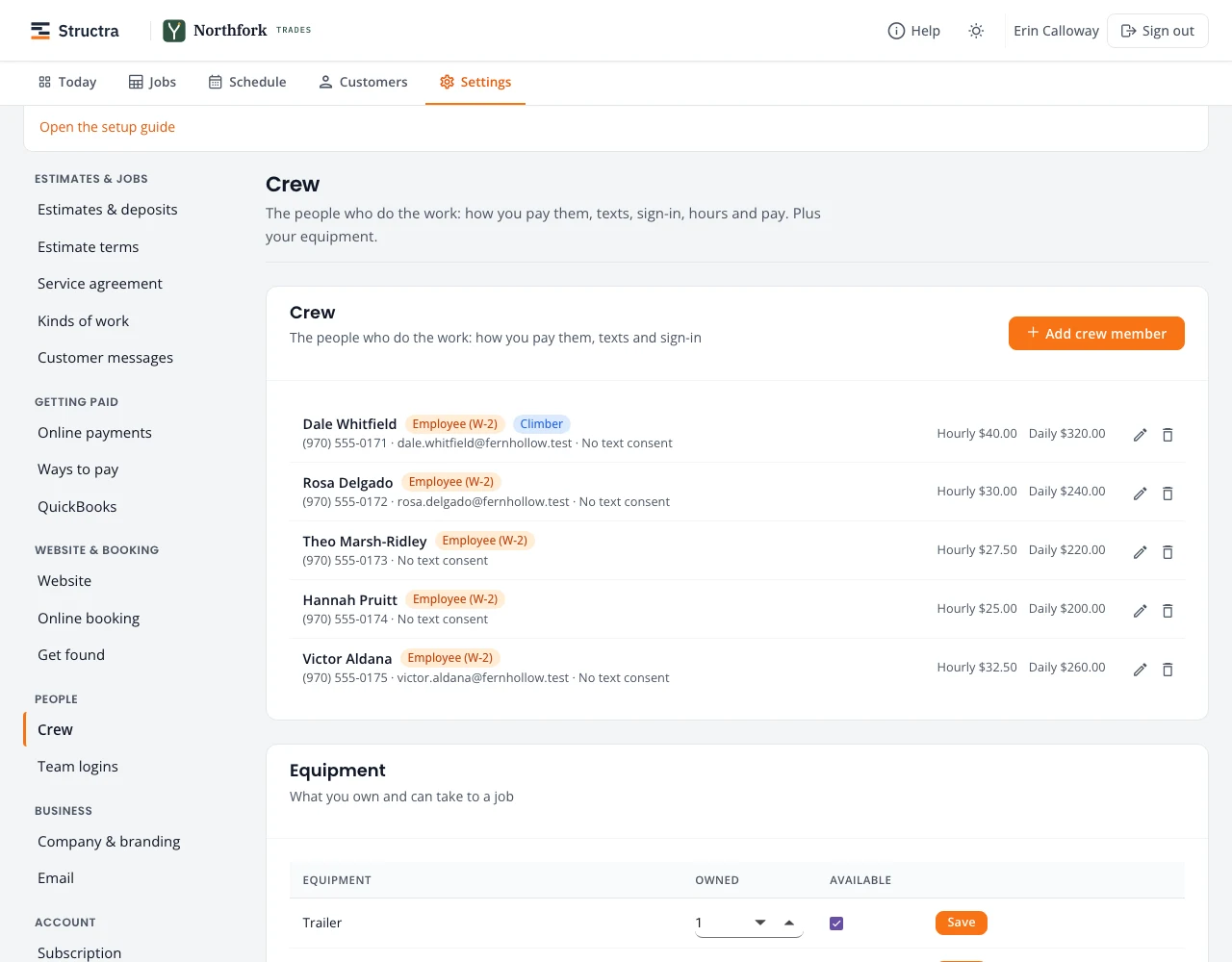
Open Settings, Crew. Each person shows their phone and email, whether they are an employee (W-2) or a contractor (1099), whether they agreed to texts, and their hourly and daily rate. Below the list: Equipment (tree care), Crew hours and Contractor pay.
Add or edit a crew member
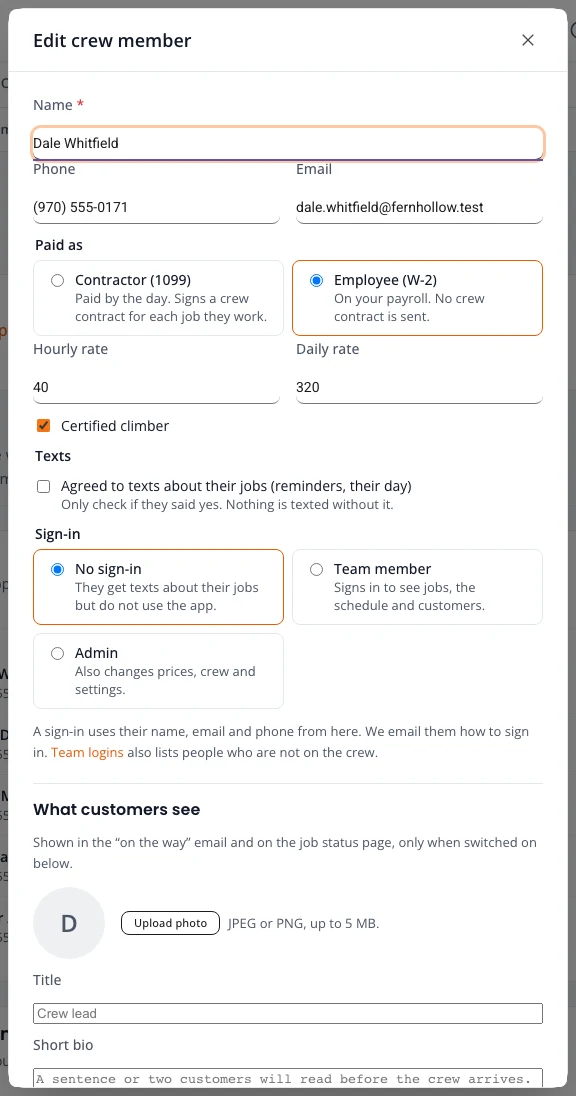
- Press Add crew member, or the pencil beside someone.
- Type their name, phone and email.
- Under Paid as, pick Employee (W-2) (on your payroll, no crew contract) or Contractor (1099) (paid by the day, signs a crew contract for each job). Add the hourly or daily rate.
- For tree work, tick Certified climber.
- Under Texts, tick only what they agreed to: texts about their jobs, and for contractors, job offers by text. Nothing is texted without it. A STOP reply is kept until they text START.
- Choose a Sign-in (below) and save.
After saving you can add a photo and a short bio for What customers see (shown in the “on the way” email and on the job status page), and upload a contractor’s W-9.
Crew sign-in
- No sign-in: they get texts about their jobs but do not use the app.
- Team member: signs in to see jobs, the schedule and customers, and to press On my way, Started and Work complete.
- Admin: also changes prices, crew and settings.
A sign-in uses the name, email and phone on the crew record. We email them how to sign in (with a code, no password). Take someone off the crew and their sign-in stops too.
Crew hours, days off and holidays
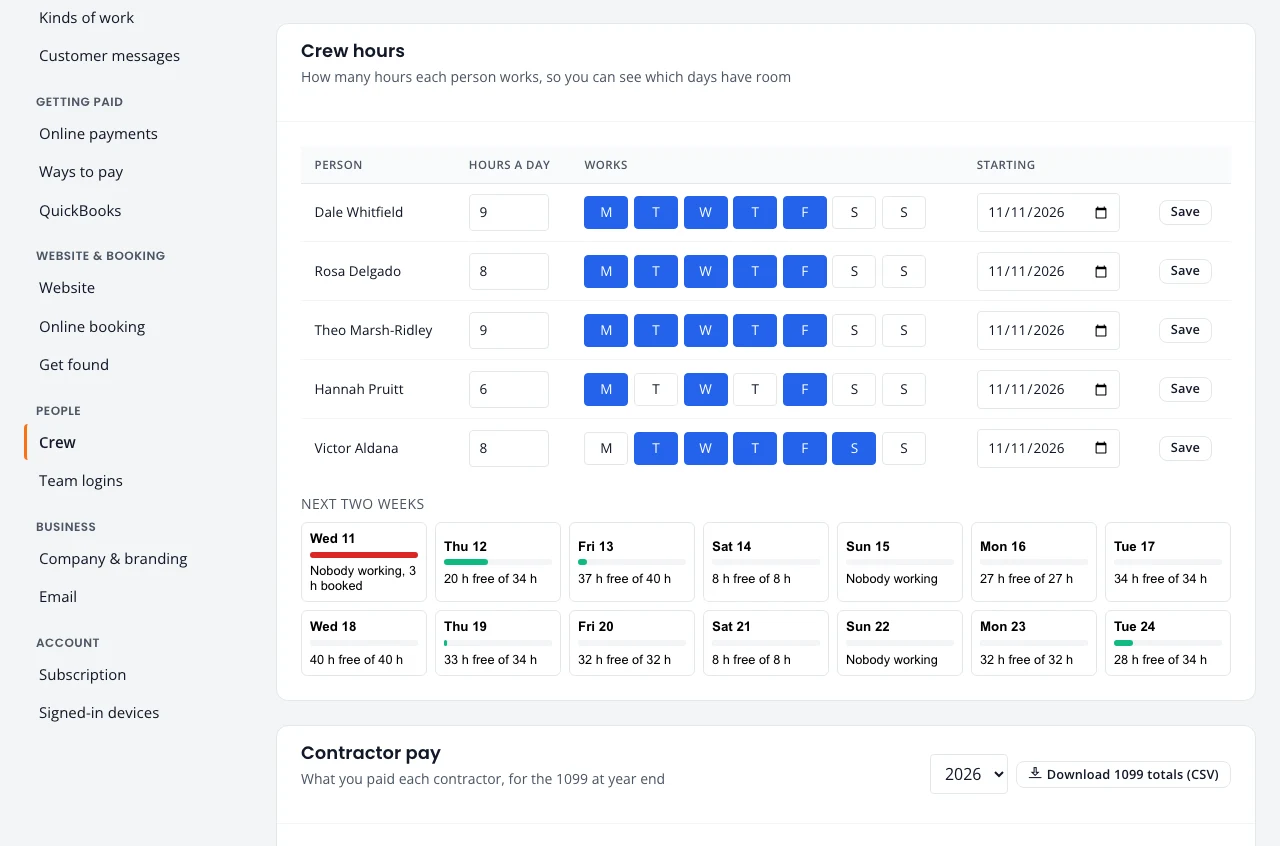
In Crew hours, set each person’s Hours a day, the days they work, and the date it starts. Press Save on the row.
The next two weeks show, for each day, hours booked against hours free. Select a day to see each person; press Day off for someone, or give them shorter hours that day. Holidays show greyed out. This is what the schedule uses to tell you which days have room; see Crew capacity.
Equipment
With tree care on, Equipment lists what you own and whether it is available: trailer, chainsaws, pole saw, chipper, skid-steer, stump grinder, crane. Estimates that need a machine you do not have say so.
Paying contractors
Contractor pay records what you paid each contractor, by day and job. Pick the year and press Download 1099 totals (CSV) at year end. Contractors need a W-9 on file before you pay them.
Team logins
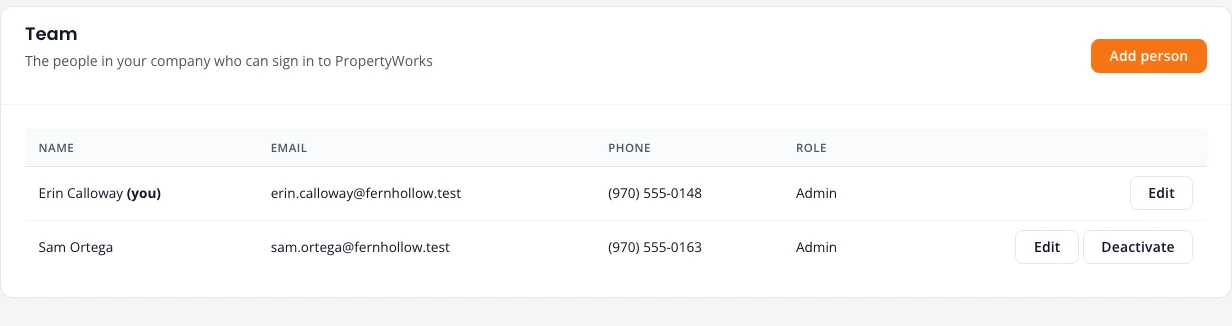
Settings, Team logins lists everyone who can sign in, with their role. Crew members get their sign-in on Crew; add people here who sign in but are not on the crew, like someone in the office.
- Press Add person.
- Type their name, email and phone, and pick Admin or Team member.
- Save. They get an email and sign in with a code.
Edit changes a role; Deactivate stops a sign-in. Your plan sets how many people can sign in.
Stuck on something? Email support@northforktrades.com and tell us what you were trying to do.